
When you add a Facebook Page to your Business Manager, you can manage your Page's activity with one tool. Adding a Page to your Business Manager means you're claiming your business owns that Page.
Please Note:
- Adding a Page to your Business Manager account is not the same process as claiming responsibility for a Page. You must go through the business verification process to do this.
Learn more about : Business verification
2. You must have a primary Page to request access to or add another verified Page. Learn more about : how to change your primary Page in Business Manager
3. To add a Page to Business Manager, you must also have been an admin on the Page for more than seven days. If you aren't an admin on the Page, you'll have to request access to the Page.
4. You must be an admin in the Business Manager.
5. The Page you're trying to add can't be owned by another person or business. Each Page can only be owned by one business. If you want to add a Page you don't own, the Page's owner can transfer ownership of the Page to you.
6. If your Page is linked to an Instagram business account, you should also add your Instagram business account to your Business Manager. Learn how to add your Instagram business account to your Business Manager.
Steps to add Page to Business Manager :
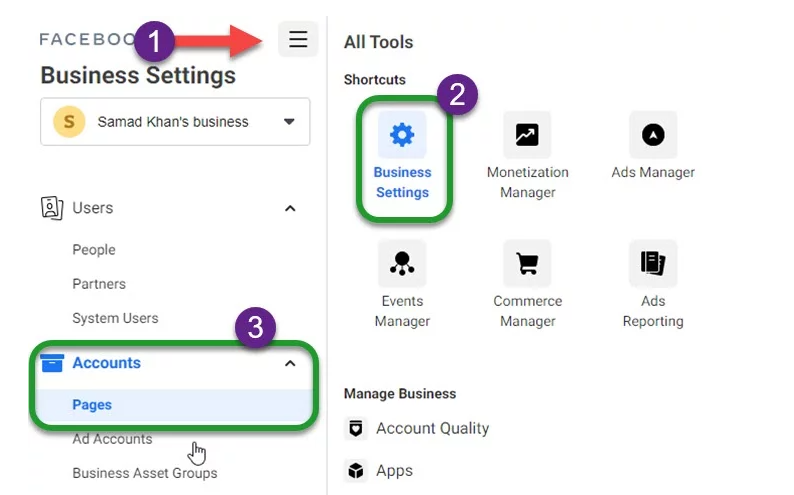
- Login to your Business Manager Account. Then click the menu at the left sidebar (three lines).
- Click Business settings in the shortcuts.
- Now at the left menu, click Accounts. Then, click Pages.
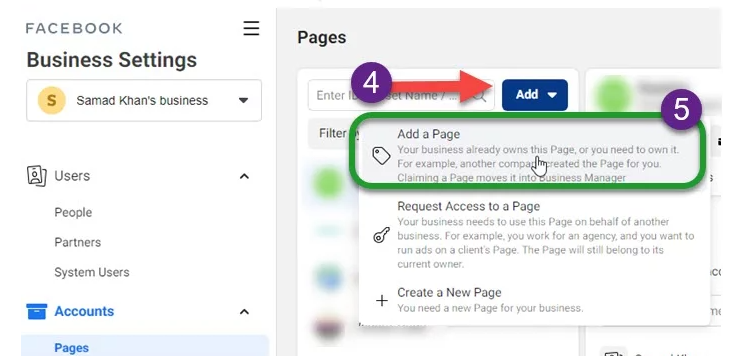
- Click Add button.
- Select "Add a Page".
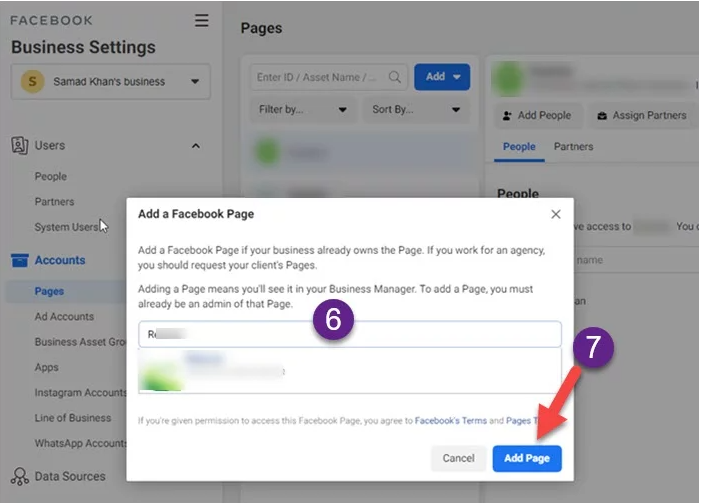
- Enter the Facebook Page name or URL or ID. Post which you will see the page preview,
- Select and click the "Add page" button and you are done.
Comments
0 comments
Please sign in to leave a comment.