
If you are an creator please follow below instructions to get onboarded with on Triller CrossHype. To know more about CrossHype : Click Here
Essentials steps to CrossHype Marketing :
In order to use the feature you will have to make sure of below points :
- Create a Facebook page.
- Connect the Facebook page to Instagram account. Amplify/Triller requires an Instagram Professional account. Steps to setup Instagram professional account :
- In settings
 , find Account
 and tap Switch to professional account.
 - Pick a category that best describes your business, then select Business.
- You're all set – you've got an Instagram business account. Now complete your profile using the tips below. Click her to read more about : Setup Professional Account
4. Share Facebook partner access to Triller Amplify Business ID.
Please follow below steps :
1. Create a Facebook page.
Users need to have Facebook page so that they can reach billions of potential customers, lower their marketing expenses and reach out to specific audience. If you don't have a Facebook page please review our article How to create a Facebook Page and follow steps.
If you already have a Facebook page lets proceed to second step.
2. Connect the Facebook page to Instagram account.
To use CrossHype feature you need to connect your Facebook page to your Instagram account. This is essential step which enables you to manage your branded content in regards with insights, access rights.
Please follow steps in the article Connect your Instagram with Facebook page
If your page is already connected to your Instagram account you can proceed to step 3.
3. Share Facebook partner access to Triller Amplify Business ID via your Business Manager.
To add Triller to your Business Manager follow below steps :
-
Log In to Your Business Manager Account by clicking on business.facebook.com to access your Facebook Business Manager account.
2. Go to Business settings. In the top right corner of your Business Manager page, you’ll see a blue button that says “Business Settings.” Click on that button to access your business settings.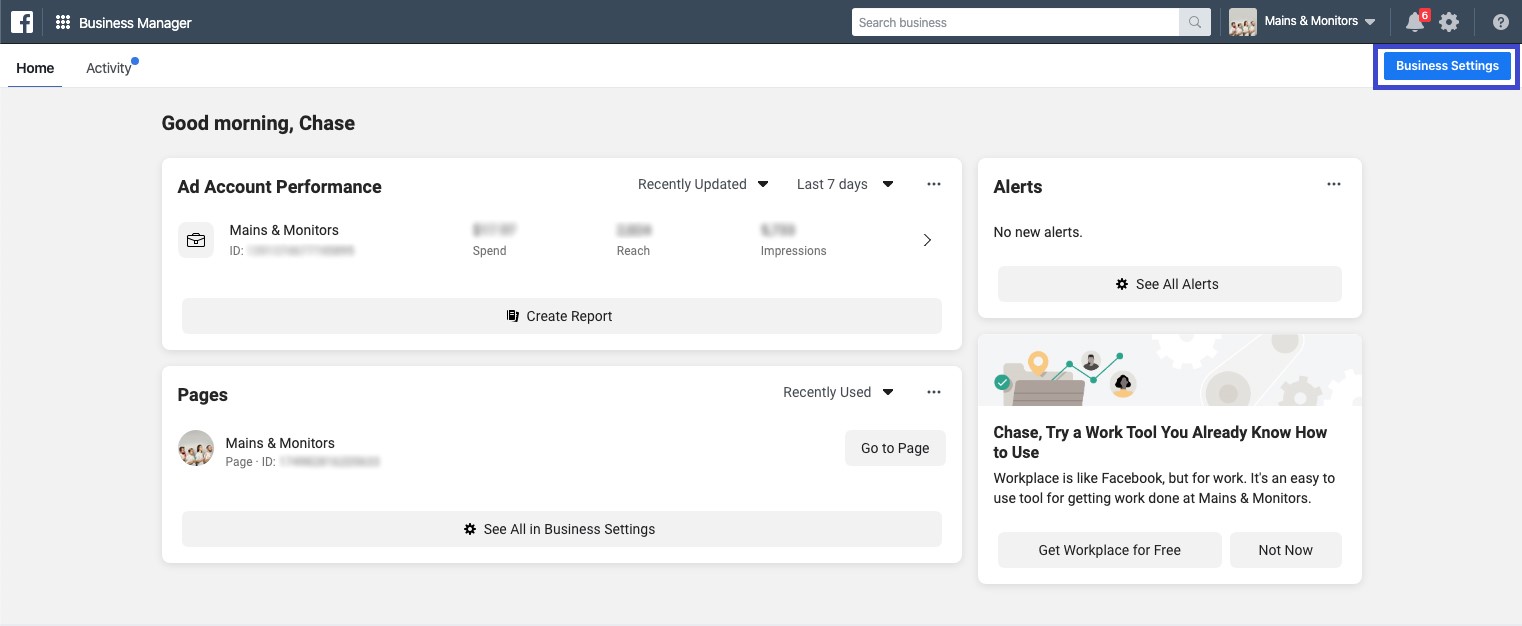
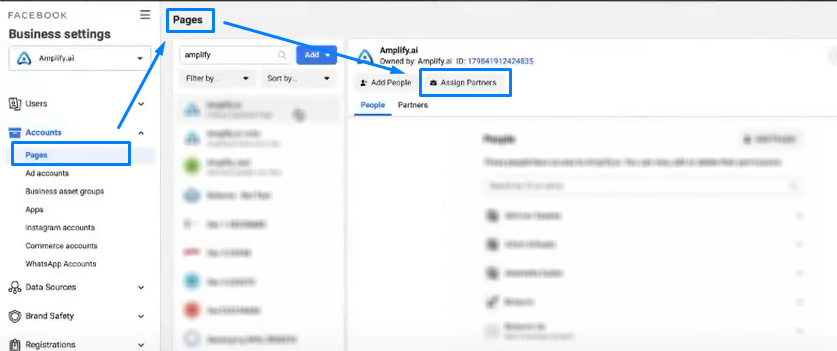
3. Under Accounts, click Pages.
4. Select Assign a Partner to share access of few assets (Community, Create Ad, View Page Performance, Send Messages).
5. Select the Business ID.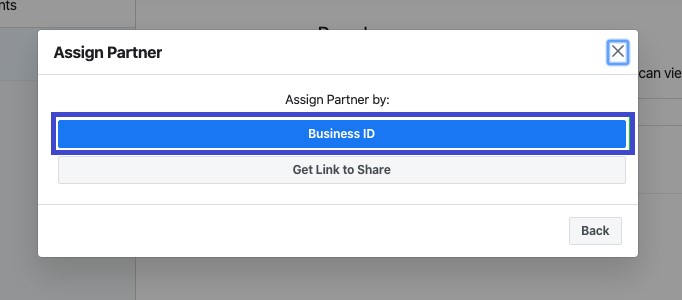
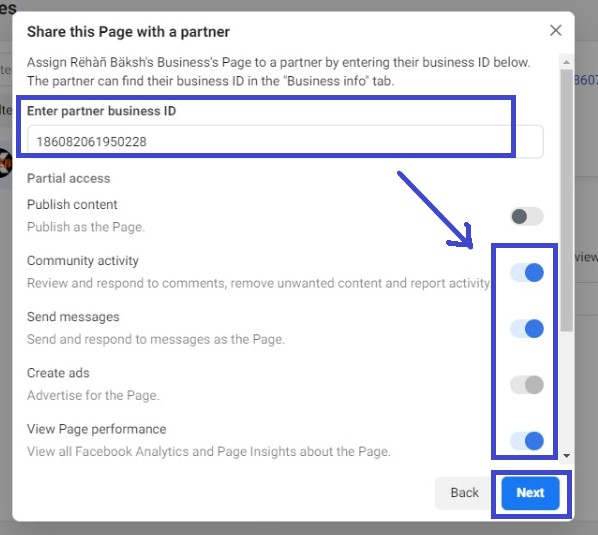
6. On the following screen enter the Triller Amplify Business ID : 186082061950228 in "Enter Partner Business ID column" and use toggle button in front of below mentioned fields to share access and click next .
- Community
- Create Ad
- View page Performance
- Send Messages.
7. Finally, after you hit next, you will now see that you’ve successfully granted page access. Hit “Done” and you’re all set.
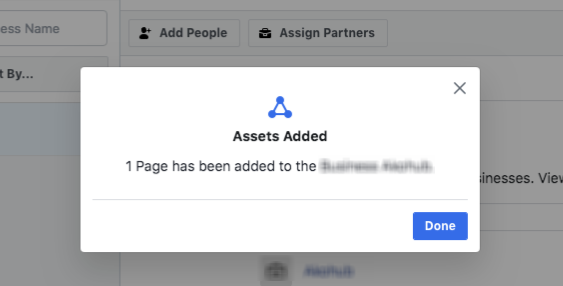
Triller/Amplify can now see the assets you assigned to them in Business Manager.
8. Please notify your Triller partner that you have shared the access.
Comments
0 comments
Please sign in to leave a comment.