
If you wish to create a custom smart replies for specific set of comments, you can choose the Custom Campaign feature available under Smart Replies, which enables you to target a specific tag and post public responses to comments associated with the tag.
For example, if you wish to appreciate the users who have posted comments with a very positive comment like "I love your products," you can create a custom campaign and draft a public response to be posted.
To set up a Custom Campaign, first create a tag so that campaign can be targeted.
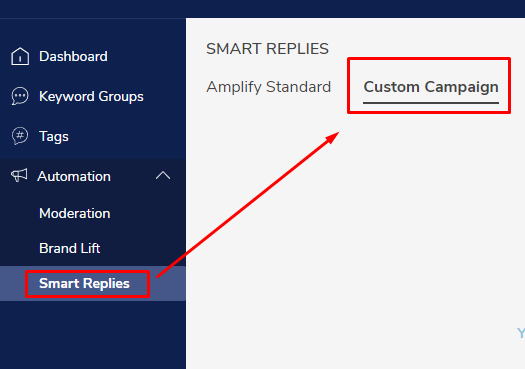
After creating the tag, select the ‘Custom Campaign’ option from the automation drop down. You will be able to see 'Custom Campaign' under the Smart Replies tab.
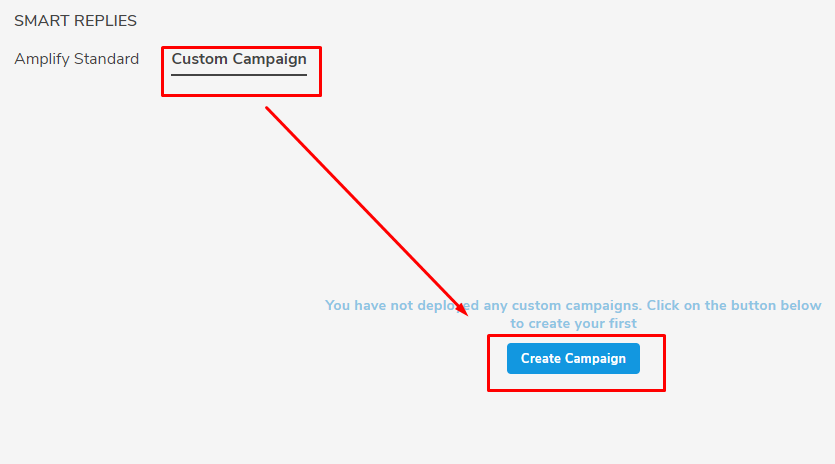
Under the Custom Campaign tab, click on the 'Create Campaign' button.
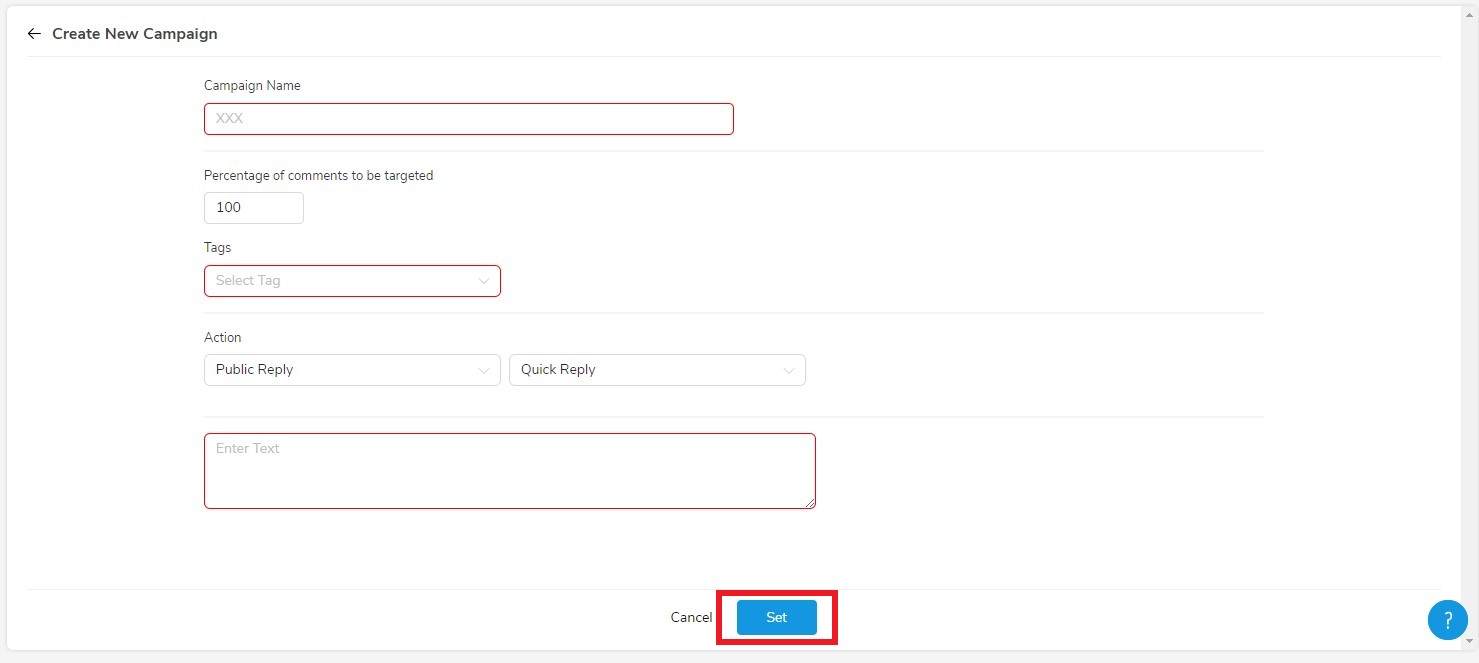
The system will request inputs for the following mandatory fields:
- Campaign Name - Assign a name to the campaign. For example : "Public Reply - Love Brand"
- Percentage of comments to be targeted - Mention the percentage of comments you wish to target
- Select a Tag - Select a tag from the drop down menu. For example: "Love Brand"
- Public Reply - Mention the response in the tab
There are three ways to set the 'Public Reply.' The default option is 'Quick Reply.' You can also choose to use a Template as your smart reply by toggling over 'Quick Reply.' You can explore Templates and how to set them up here.
Once finished with the above fields, click on 'Set' at the bottom of the page.
You will be able to see your created campaign under custom campaign tab. There, you will be able to set
the campaign as active or inactive.
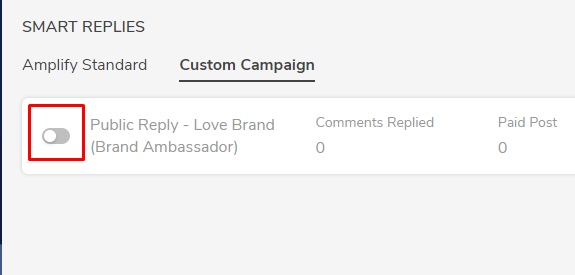
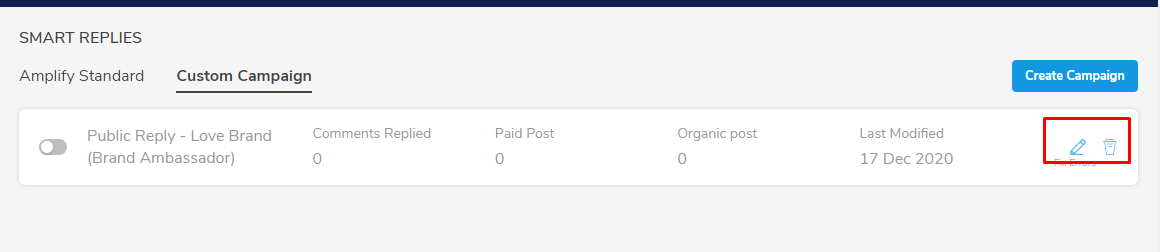
If you wish to edit the campaign, locate the edit option represented through a pen icon on the right side. You will be able to find a delete icon beside the edit option if you wish to delete the campaign.
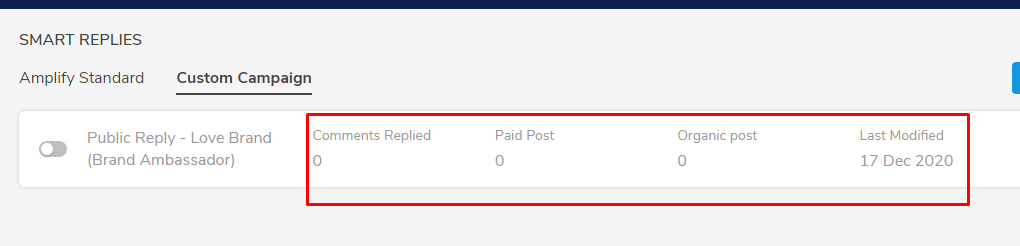
Once the campaign is live, the system will also start generating the data for below fields which can be used for further analysis. This is visible on the very same campaign. Refer the below image.
- Comments Replied
- Paid Post
- Organic Post
- Last Modified
Comments
0 comments
Please sign in to leave a comment.