
Overview
The Tags feature allows you to add various conditions (rules) to identify and label comments. One of the powerful capabilities of Tags is to add suggested actions such as hide, like, public reply, delete, etc. to filter through comments.
For example, if a user comments “I can’t wait for my order as it is taking foreverrrrr,” then the system will automatically mark this comment under the tag “Where is my order,” with a suggested action of 'public reply.' The system will mark this comment with this tag because the system recognizes the intent of 'Where is my order.'
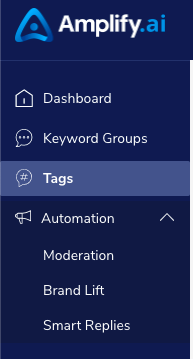
You can access the 'Tags' tab from the left panel as shown below.
What can you do with Tags?
Tags allow you to accomplish two important tasks in this product.
1. You can set up Tags to identify comments in the 'Actionable' tab of the comment inbox. This will help your social care team filter through the comments that most urgently require action. When all comments in the ‘Actionable’ tab are responded to, the inbox will read '0.'
2. After getting used to the Tags and the comment inbox, you can begin to automate certain tasks using tags. For example, comments with the Tag of ‘Very Positive Sentiment’ can be automatically liked.
How to use Tags?
There are essentially two types of tags:
1. Amplify Standard Tags: These are predefined tags created by Amplify.ai that come out of the box. We will discuss the details of these tags in another article. You can either enable or disable these tags anytime. You can not edit the rules that go into these Tags.
2. Custom Tags: These are manually created tags and therefore can be created by the customer. You can personalize and tailor these to the specific needs of the brand.
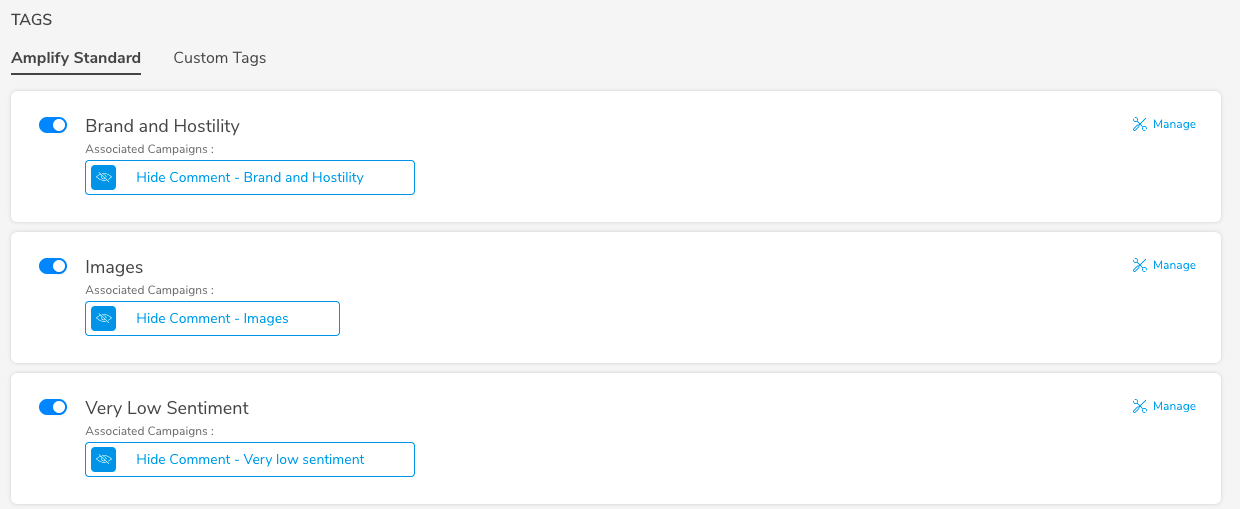
If you click on 'Manage' on the right-hand corner you can further dive into the specific tag and the action associated with it.
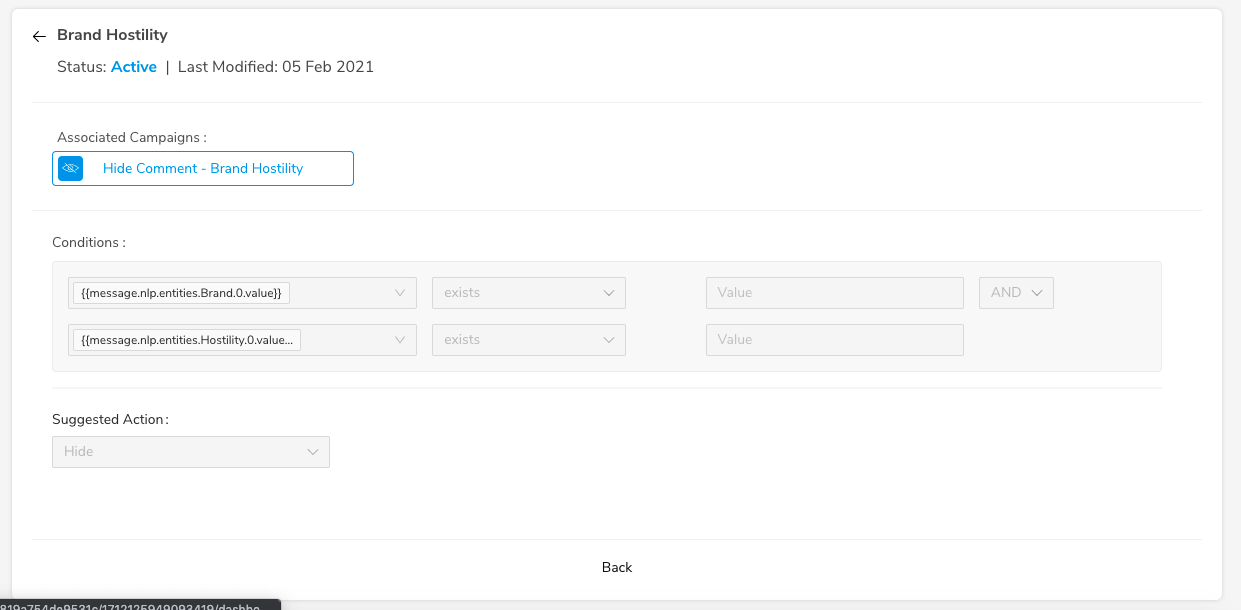
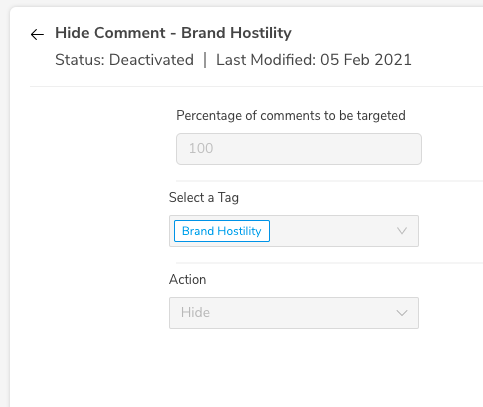
Tags can be viewed in the 'Actionable' tab of the comment inbox on the right-hand corner of every comment. Each comment will be displayed with the associated tag and the tags are color-coded by category.
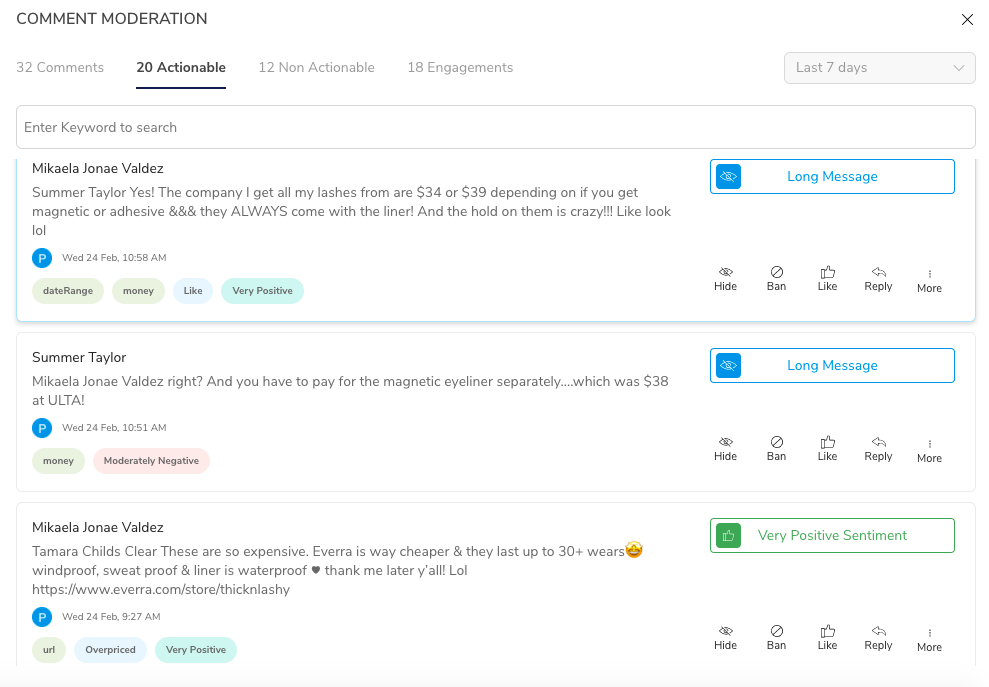
Color coding
Blue - suggests a hide action
Green - suggests a like action
Purple - suggests a public reply action
Red - suggests a ban or a delete action
Gray - suggests no specific action
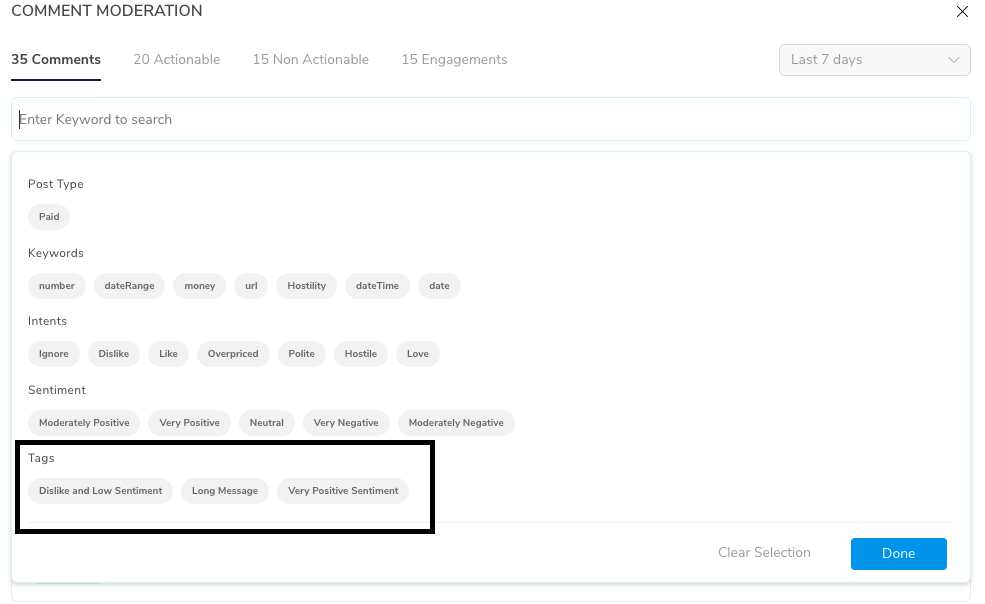
In the comments inbox, you can also use specific tags in the keyword search for more efficient tracking.
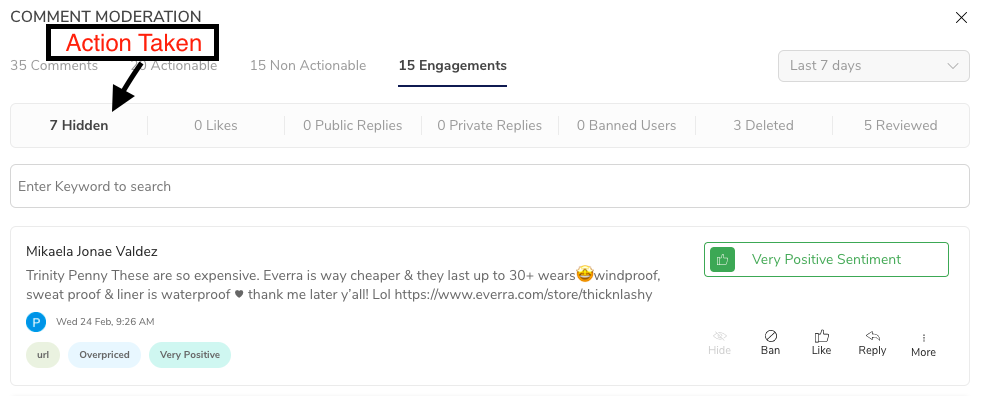
In the engagements section, you can also inspect comments that have been engaged with automatically or manually according to the action associated with the tag.
Comments
0 comments
Please sign in to leave a comment.