
Overview
Keyword Groups provide a way to organize words expressed by your customers related to your brand or products. This prompts our AI engine to label your comments when specific words occur in comments. For convenience, the product also allows one to organize each group further by creating subgroups. As an example, the 'Competitor' keyword group could be organized into 'Large,' 'Medium,' and 'Small' subgroups. In each subgroup, you can add specific names of your competitors.
Description
There are two types of keywords groups:
- Amplify Standard
- Custom Groups
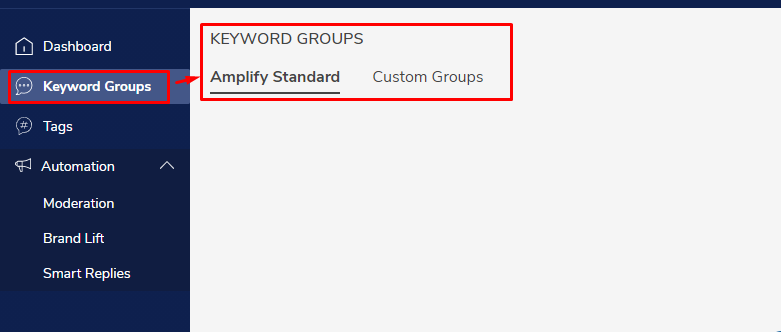
1. Amplify Standard
Amplify Standard groups are pre-defined generic keyword groups that Amplify CM makes it available within the product. Listed below are the most common standard keyword groups we surface:
- Brand
- Competitors
- Hostile
- Spam
- Crypto Coin
- Products
- Disgust
Below we show some examples of how to edit keywords in these groups. As an example, the "Brand" group is available to label the comments which contain a brand name or various names a brand is mentioned
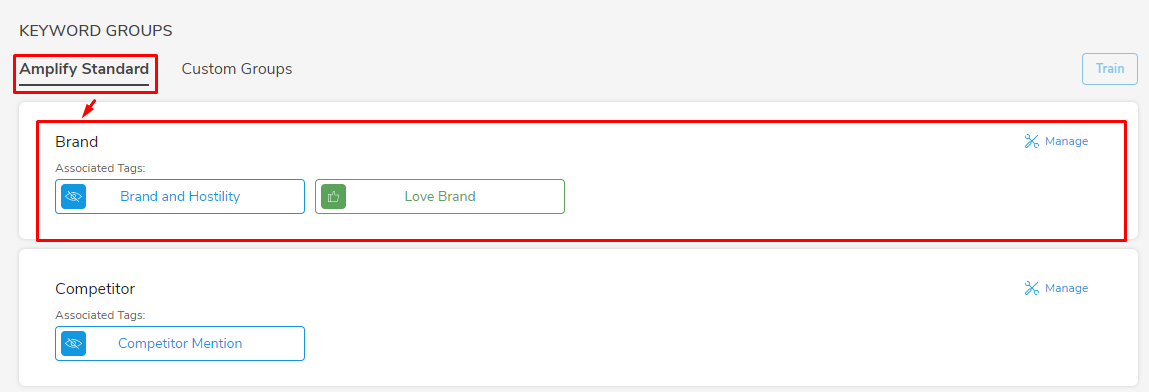
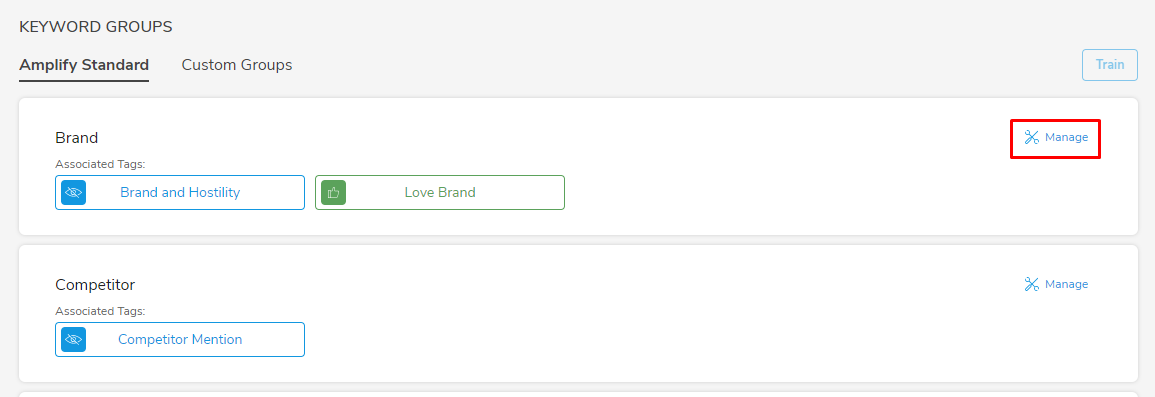
In order to add multiple keywords associated with the brand, please click on the 'Manage' button available on the right side.
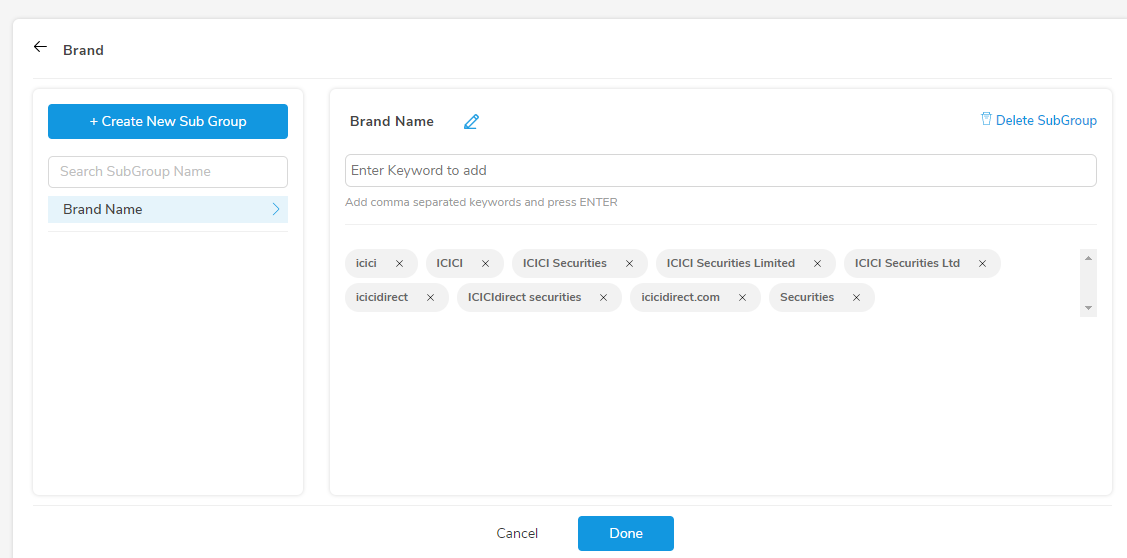
Start adding the keywords and click 'Done' at the bottom once finished.
After adding the keywords, the system needs to be trained to identify and label new keywords in the comments. Hence, as a final step, locate the 'Train' button on the upper right side and click on it.
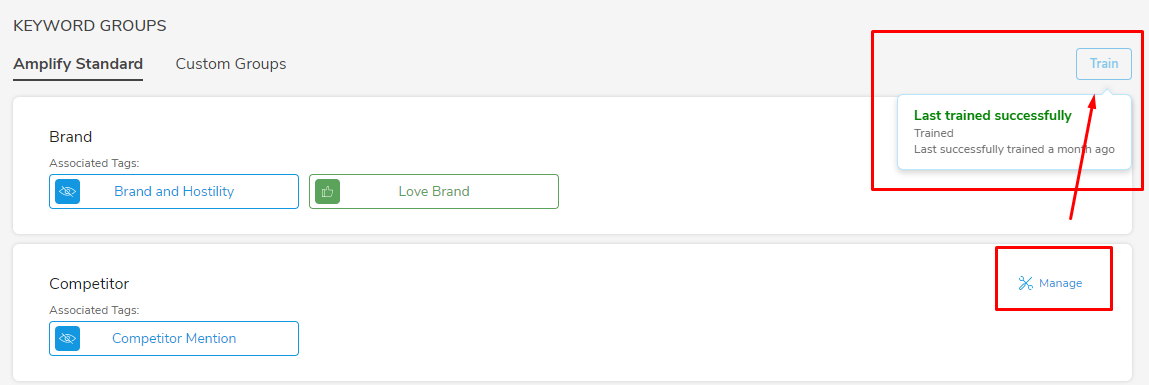
Moving forward, the product will start labeling the comments with the new keywords mentioned in the 'Brand' group and 'Brand' will show up in the comment viewer.
2.Custom Groups
Custom groups provide the functionality wherein you can name and create a custom keyword group to train the system to identify comments based on chosen keywords.
For example, you might need a custom-created group that can label the comments containing bad customer service keywords. In order to achieve that you can start by clicking on the 'Create New Group' button.
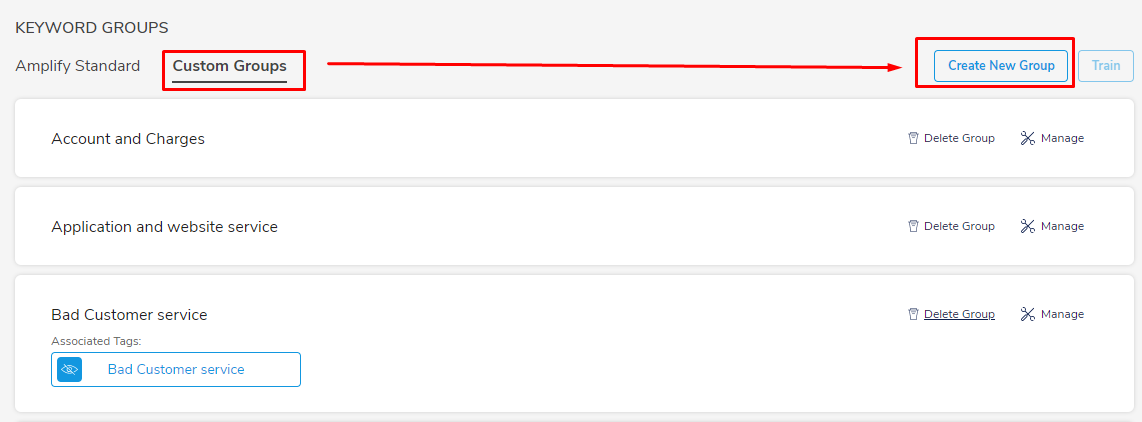
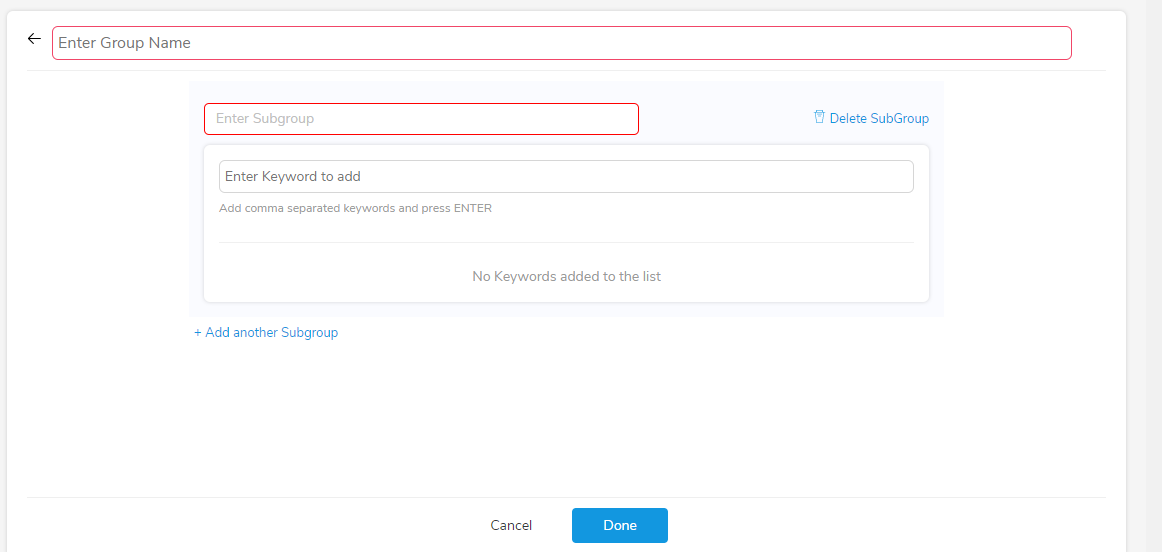
Add a group name, subgroup name, and keywords and hit done.
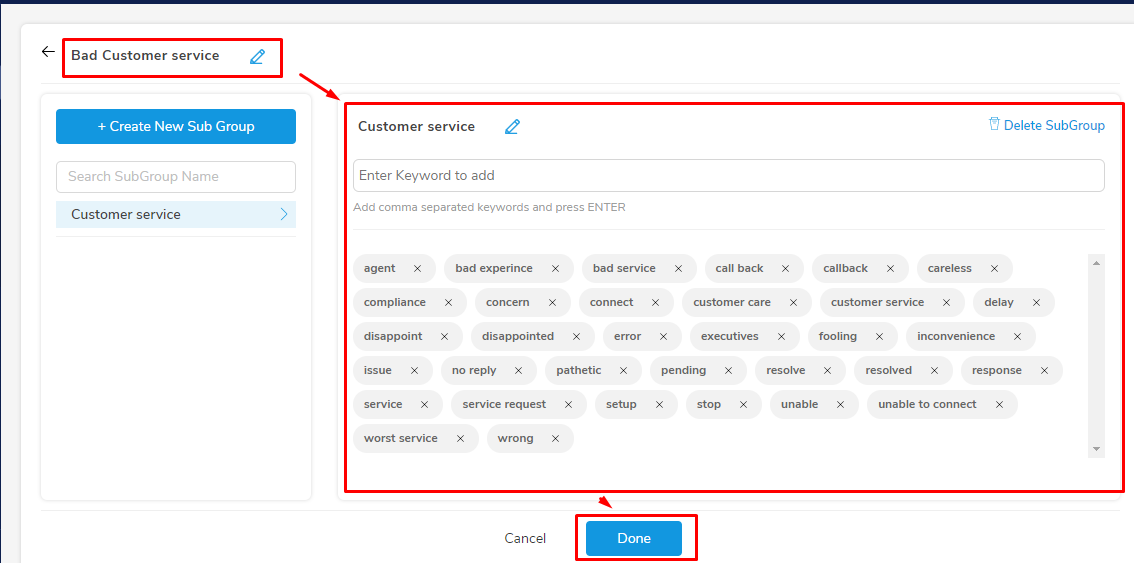
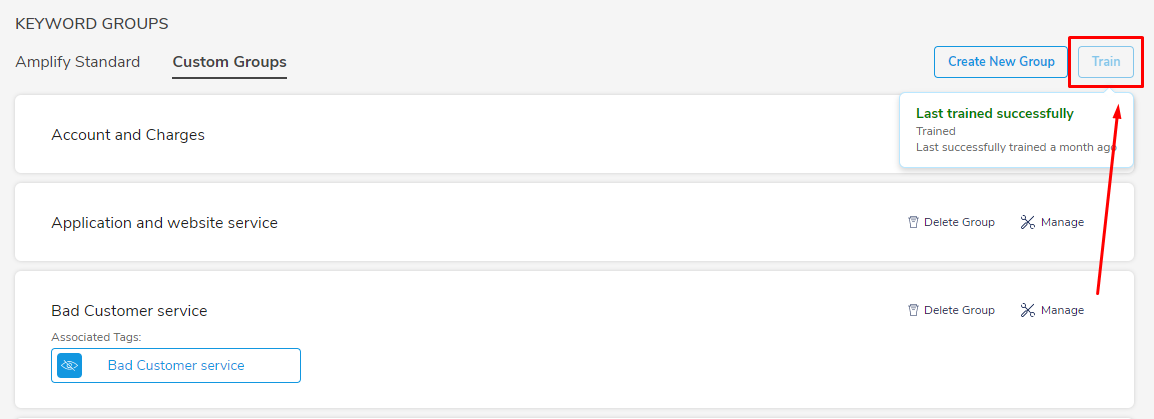
After adding the keywords, the system needs to be trained to identify and label new keywords in the comments. Hence, as a final step, locate the 'Train' button on the upper right side and click on it.
Comments
0 comments
Please sign in to leave a comment.